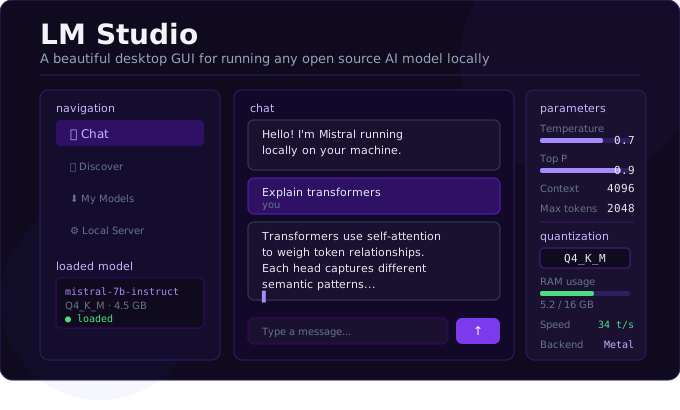
Not everyone wants to live in a terminal. For developers, researchers, and curious users who prefer a point-and-click experience, LM Studio is the gold standard for running AI models locally. It combines a polished desktop application with serious technical capabilities — making local LLMs accessible to anyone, regardless of their command-line comfort level.
Released as a free desktop app for macOS, Windows, and Linux, LM Studio has quietly become one of the most-used tools in the local AI space. As of 2026, it supports thousands of models from Hugging Face, features a built-in chat interface, and offers an OpenAI-compatible local server — all wrapped in one of the cleanest UIs in open source software.
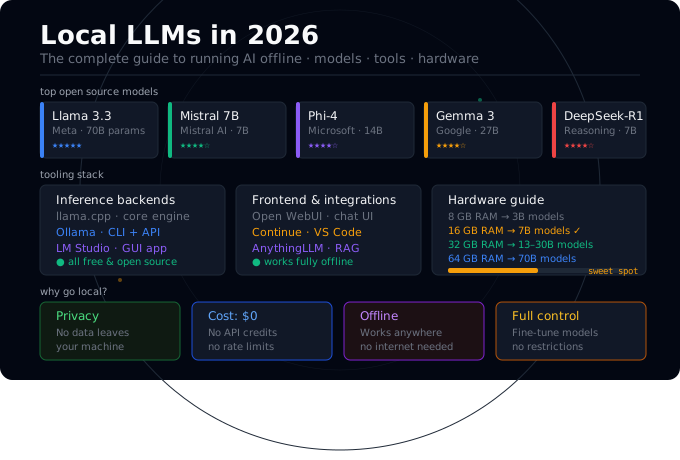
What Is LM Studio?
LM Studio is a desktop application that lets you discover, download, and run open source language models entirely on your local machine. It acts as a friendly frontend for llama.cpp and other inference backends, handling all the technical complexity behind the scenes.
Where Ollama focuses on simplicity and developer-first CLI usage, LM Studio prioritizes visual accessibility. You can browse models, read their descriptions, check hardware compatibility warnings, download with a progress bar, and start chatting — all without writing a single line of code.
Key Features
Hugging Face model browser. LM Studio integrates directly with Hugging Face, giving you access to tens of thousands of models from a searchable in-app directory. Filters help you narrow by model type, size, quantization format, and hardware compatibility.
GGUF model support. LM Studio runs models in GGUF format — the standard quantized format for consumer-grade local inference. Quantization shrinks model size by representing weights in lower precision (e.g., 4-bit instead of 32-bit), making large models runnable on everyday hardware with minimal quality loss.
Built-in chat interface. Switch between models mid-conversation, adjust system prompts, tweak generation parameters (temperature, top-p, context length) all from the UI — no config files required.
Local inference server. LM Studio can run as a local server that mimics the OpenAI API. This means tools like Cursor, Continue, or any custom application built against OpenAI’s SDK can be pointed at LM Studio with minimal changes.
Multi-model sessions. Recent versions allow running multiple models simultaneously and routing between them — useful for comparing outputs or building multi-agent workflows.
How to Get Started
Step 1 — Download LM Studio
Visit lmstudio.ai and download the installer for your platform. It is a standard application installer — no dependencies, no terminal required.
Step 2 — Browse and Download a Model
Open LM Studio and navigate to the Discover tab. Search for a model — try “Mistral 7B” or “Llama 3.2” to start. LM Studio will show you compatible quantized versions and flag whether they fit in your available RAM.
Click Download. A progress bar shows the download status. Most 7B models are 4–6GB depending on quantization.
Step 3 — Load the Model and Chat
Go to the Chat tab, select your downloaded model from the dropdown, and start typing. The model loads into memory (usually 5–20 seconds depending on size and hardware) and you are ready to go.
Step 4 — Start the Local Server
Navigate to the Local Server tab, select a model, and click Start Server. LM Studio will run an OpenAI-compatible API at http://localhost:1234/v1. You can now use it with any compatible tool or SDK.
Understanding Quantization: What Do Those Letters Mean?
When browsing models in LM Studio, you will see file names like mistral-7b-instruct.Q4_K_M.gguf. The quantization suffix tells you the quality/size trade-off:
| Format | Precision | Size (7B) | Quality |
|---|---|---|---|
| Q2_K | 2-bit | ~3 GB | Noticeably degraded |
| Q4_K_M | 4-bit (medium) | ~4.5 GB | Good balance ✓ |
| Q5_K_M | 5-bit (medium) | ~5.5 GB | Very good |
| Q8_0 | 8-bit | ~8 GB | Near original quality |
| F16 | 16-bit (full) | ~14 GB | Best quality, heavy |
For most use cases, Q4_K_M is the sweet spot — it fits comfortably in 8GB of RAM and produces output that is nearly indistinguishable from the full-precision model.
LM Studio vs Ollama: Which Should You Use?
Both tools are excellent. The right choice depends on your workflow.
Choose LM Studio if: you prefer a GUI, you want to browse and discover models visually, you are not comfortable with the command line, or you want to quickly compare multiple models side-by-side.
Choose Ollama if: you prefer CLI tools, you are building scripts or automated pipelines, you want to integrate with Docker or server environments, or you need the lightest possible footprint.
Many practitioners use both — LM Studio for exploration and experimentation, Ollama for integration into development workflows.
Privacy: The Real Selling Point
It is worth stepping back and appreciating what LM Studio actually gives you from a privacy perspective.
When you use ChatGPT, Claude, or Gemini, every prompt you send travels over the internet to a remote server. Your conversations may be used to improve models, reviewed by human trainers under certain conditions, or stored for extended periods. For many consumer use cases this is fine. For sensitive work — legal documents, medical notes, confidential business strategy, personal journaling — it is a meaningful concern.
LM Studio eliminates this entirely. Your prompts never leave your machine. There is no account required (you can use it completely anonymously), no usage data sent to a server, and no terms of service governing what you can say. What you type stays on your computer.
The Bottom Line
LM Studio is the most accessible entry point into local AI for users who want power without complexity. Its clean interface, deep model library, and seamless server functionality make it genuinely useful for both beginners and experienced practitioners.
If you have been curious about running AI locally but were put off by command-line tools, LM Studio removes every barrier. Download it, pull a model, and have your first fully private AI conversation today.