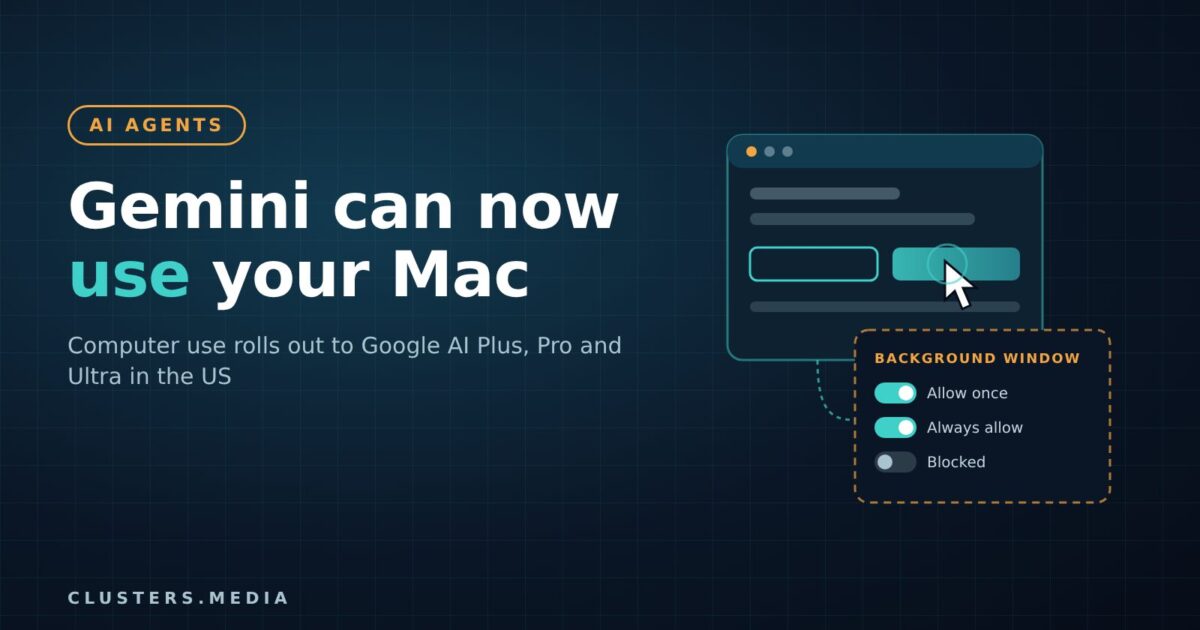
Google has switched on Gemini computer use in its Gemini app for Mac. Announced on November 19, the feature lets Gemini open desktop apps, click through menus, type into forms and move information between local files and websites while you keep using your machine. It is rolling out now in the US, in English, to paying Google AI Plus, Pro and Ultra subscribers on Apple Silicon Macs.
It is Google’s most direct move yet into the “agent that operates your computer” category, and it arrives with an unusually candid list of risks in Google’s own help documentation.
Key takeaways
- Gemini on Mac can now click, type, scroll and navigate menus in local apps and on the web to finish multi-step tasks.
- The work happens in a separate virtual screen with a live preview, so your own screen and cursor stay free.
- Requirements: an Apple Silicon Mac on macOS Sequoia 15.0 or later, a personal Google account (18+) and a Google AI Plus, Pro or Ultra plan. Work and school accounts are not supported yet.
- Permissions are set per app (deny, allow once or always allow), with allowed and blocked app lists and confirmations for sensitive steps.
- Google warns that untrusted on-screen content can steer Gemini into other apps, and that giving it code editors or developer tools can enable shell execution.
What happened
In a post on Google’s Keyword blog, Gemini app group product manager Michael Friedman introduced computer use as a way to hand off repetitive work that normally takes dozens of clicks. You describe the job in plain language and Gemini carries out the clicking, typing and form filling itself.
The examples Google gives are practical rather than flashy: batch colour-grading photos in a design tool, setting up 3D scenes, pulling weights and addresses out of local PDFs to fill in shipping quotes, building a Google Slides deck from live dashboard metrics, and staging resale listings from a folder of clothing photos. Google’s launch demo turns a child’s butterfly sketch into a rigged 3D model in Blender.
Until now, Task mode in the Mac app (previously called Gemini Spark) could read local files and work with connected Google services such as Gmail and Calendar, but it could not operate other desktop software. According to 9to5Google, Blender and Autodesk Fusion now appear as “Desktop” connectors alongside the existing Git and Obsidian integrations.
How it works
Google’s help centre page spells out the setup. In the Mac app’s settings you open the Computer use section and switch on “Allow Gemini to work with your Mac”. macOS will also ask you to grant Accessibility and Screen & System Audio Recording permissions if they are not already on. To start a job, you choose Task under the chat box and mention @Computer use in your prompt.
The design choice that stands out is the background window. Instead of taking over your visible cursor, Gemini moves the work into a virtual screen and streams a live preview into the chat. You can expand it to full screen, watch each step and press Stop task at any point. That matters for long jobs: an agent that hijacks the real cursor makes the computer unusable while it runs.
Control is handled app by app. The first time Gemini needs a program, it asks whether to deny, allow once or always allow. “Always allow” adds that app to an Allowed apps list, after which Gemini will not ask again for that app. A Blocked apps list keeps specific programs off-limits entirely. Google says Gemini asks for confirmation before sensitive tasks, and 9to5Google reports that it pauses for logins and payments.
There is also an optional safety net: on-demand file backups. Gemini tries to copy files before changing them, but Google is clear this is best effort. Backups are not always possible, some apps’ content cannot be backed up at all, and the copies are kept for 24 hours or until your next prompt.
Why it matters
Desktop control is fast becoming a standard feature for AI assistants. Decrypt notes that OpenAI’s Codex, Anthropic’s Claude and Kimi Work already offer tools that can operate a computer. Google’s version leans on two things: deep ties to Google’s own services, and a native Mac app that runs the agent in a side window rather than on your main desktop.
It also lands in a busy month for Google’s model line-up. The help centre recommends Gemini 4 Hydrogen or newer models for better results, and Google shipped Gemini 4 Neon a day before this launch. Faster, cheaper models are what make an agent that takes hundreds of small actions practical to run.
The bigger story is the risk disclosure. Google’s help page lists several concerns in plain terms. Gemini can reach logged-in accounts and active sessions in desktop apps, not just in Chrome. Some actions cannot be reversed because of how an app works. Untrusted content shown in one app can manipulate Gemini into acting in another allowed app, which is the classic prompt injection problem. Gemini can also read multi-factor authentication codes that appear on screen. And Google says automating some third-party apps may break their terms of service, putting the responsibility on the user for which apps they let Gemini drive.
What it means for developers
One line in Google’s documentation deserves a developer’s full attention: granting Gemini access to local apps such as code or text editors and developer tools can enable shell execution or wider file system changes. In practice, allowing an editor with a built-in terminal is closer to handing over a shell than handing over a text box.
A few sensible habits follow from what Google has published:
- Keep dev tools on the Blocked apps list by default. Use “Allow once” for specific jobs instead of “Always allow”.
- Watch where untrusted text lives. Issue trackers, inboxes, chat apps and web pages can all carry hidden instructions that an agent might read.
- Do not rely on the 24-hour backups. Use version control and proper backups before letting any agent touch project files.
- Close or block apps that show 2FA codes while a task runs.
For people building Mac software there is another angle. If agents start operating apps through the interface, clear menus, labelled buttons and good accessibility metadata become part of how well your product works with AI. Apps that are hard for screen readers are likely to be hard for agents too.
For businesses, the current limits matter. Computer use is only for personal accounts, so teams on Google Workspace cannot use it yet, which gives IT departments time to set a policy before it arrives.
What to watch next
Google has not announced computer use for Windows, ChromeOS or work accounts, nor a date for other countries and languages. Those are the obvious next steps. Apple is the other player to watch: Decrypt reports that Apple added tighter app and folder access controls in a macOS beta days before this launch, and Bloomberg has reported that Apple is hiring to build its own computer-using agent. How the operating system vendor treats third-party agents will shape how much freedom tools like Gemini get on the Mac.
The practical test is reliability. Google’s own help page reminds users that Gemini can make mistakes and do unexpected things. If the agent proves dependable on boring, repeatable tasks, the background-window approach could become the template others copy. If not, the permission lists will turn out to be the most important part of the feature.